We welcome you to the learning space of our platform
You can find the App ID, the Key ID and the Secret ID in the Zendesk Admin Center in the following path:
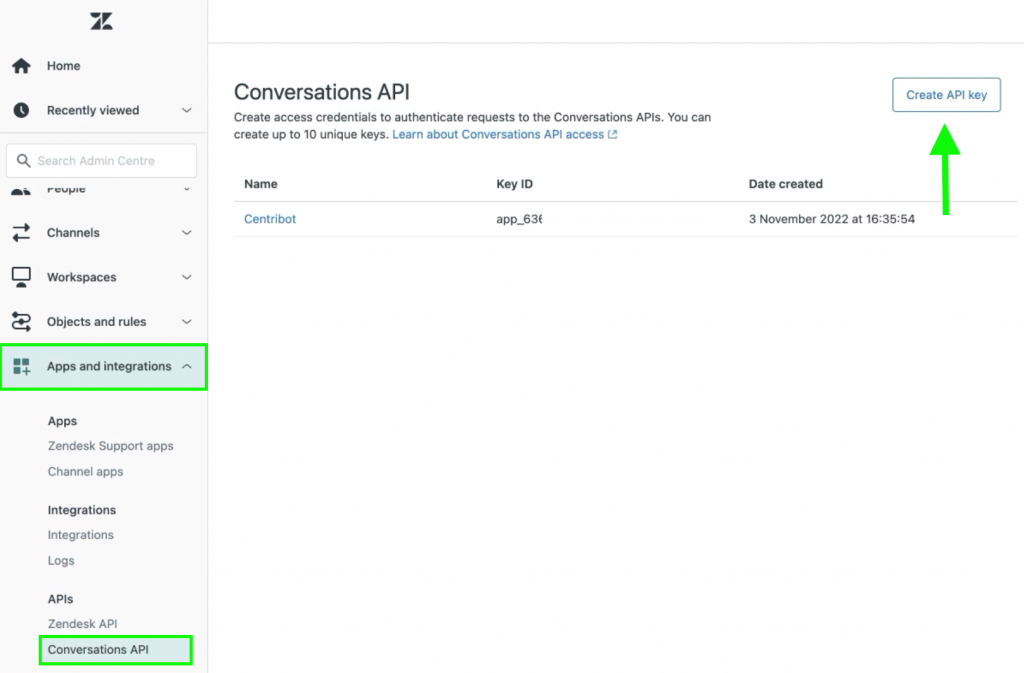
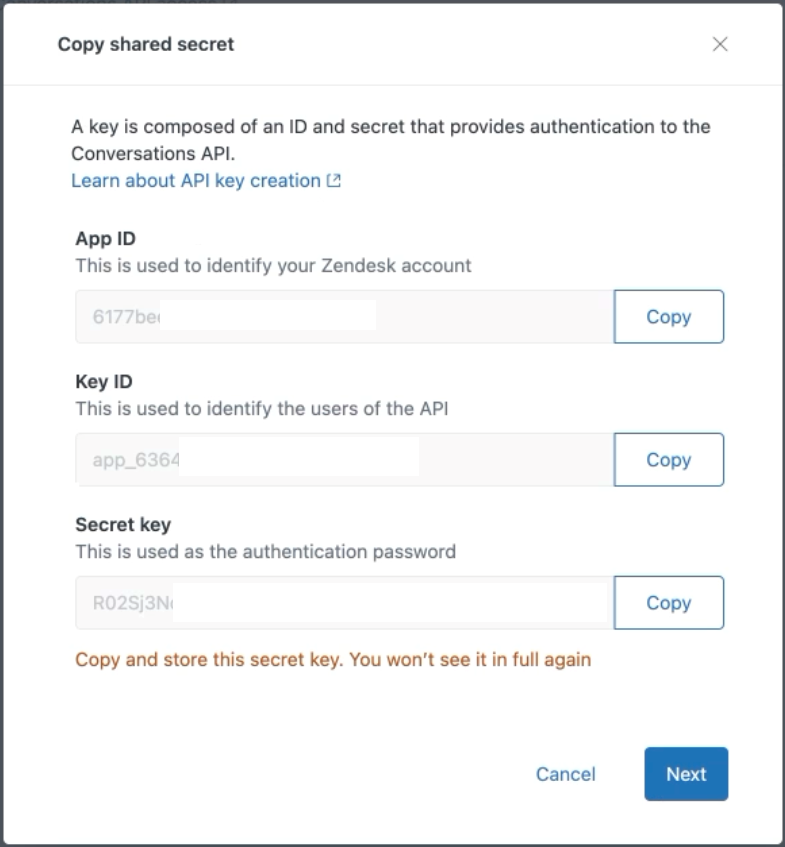
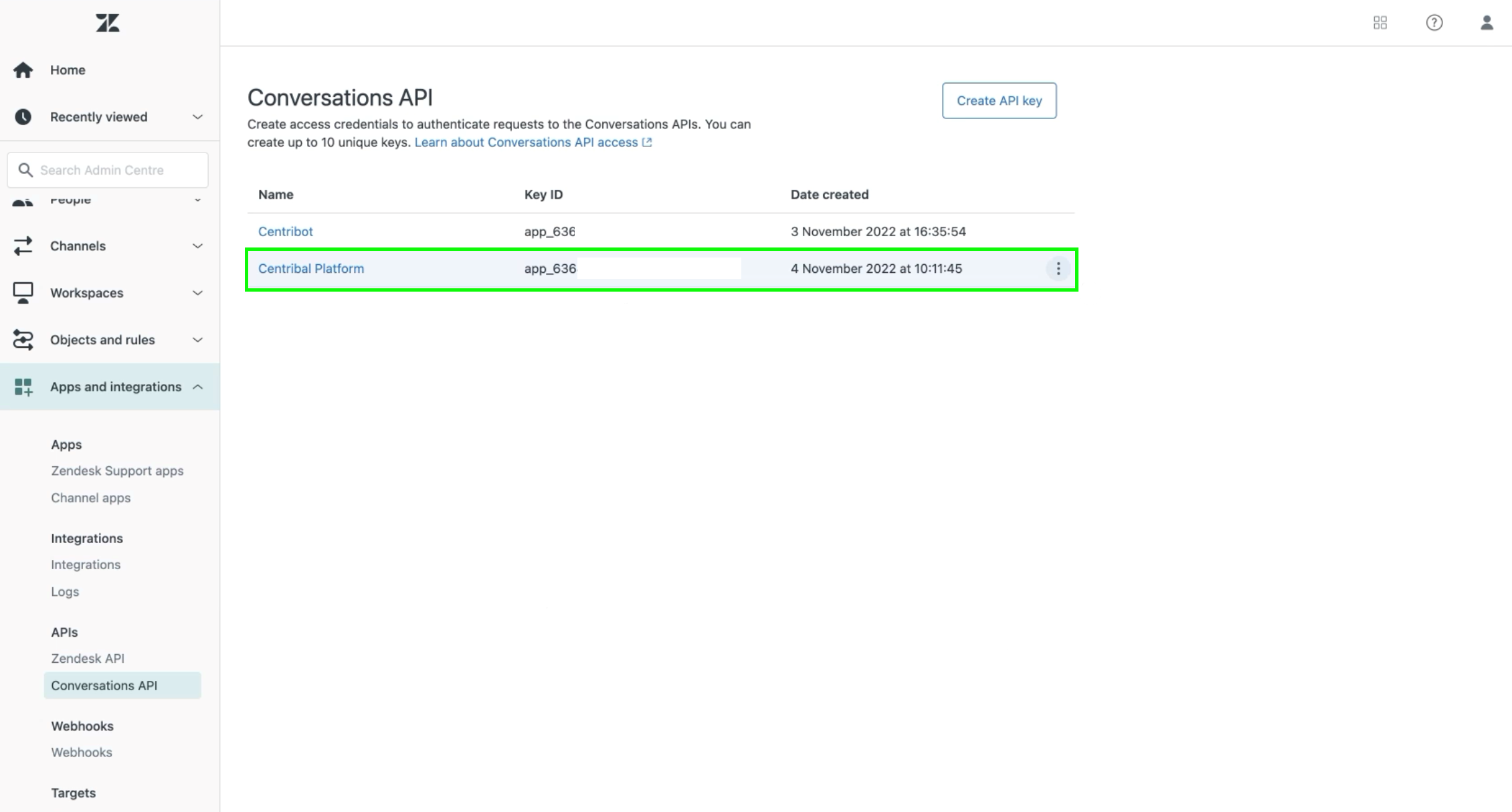
With the Key ID and Secret ID you can follow the instruction of this link to create the App Token.
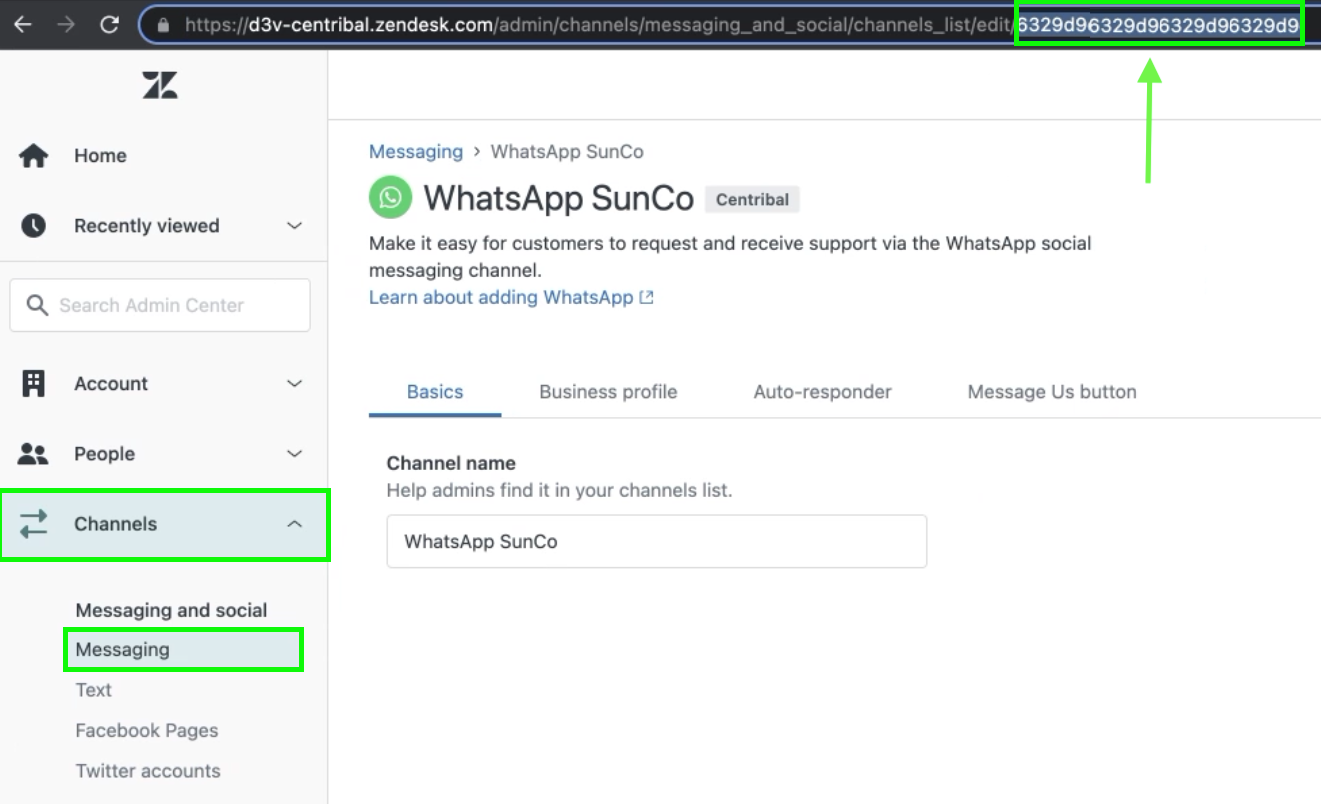
You can find WhatsApp Integration ID in the Zendesk Admin Center in the following path:
You can find WhatsApp Namespace in your Facebook Business Account or ask your SunCo Advocacy for SunCo Owned WABA.
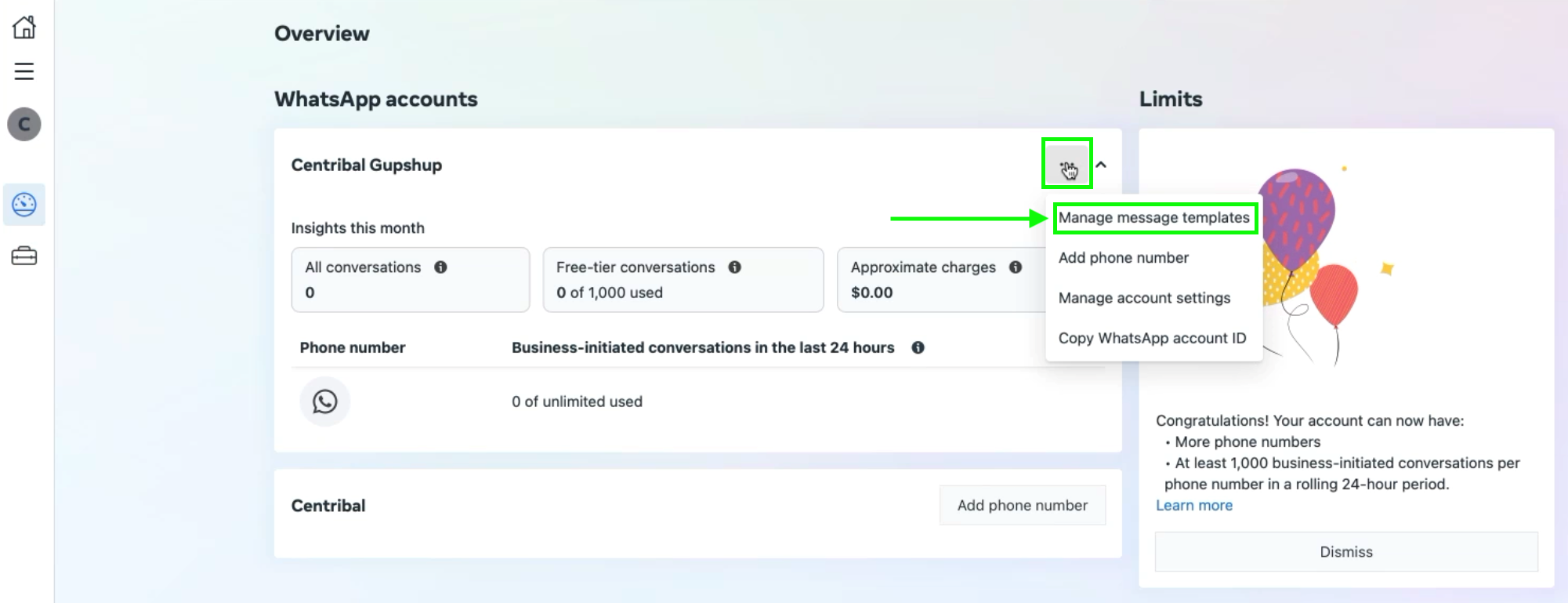

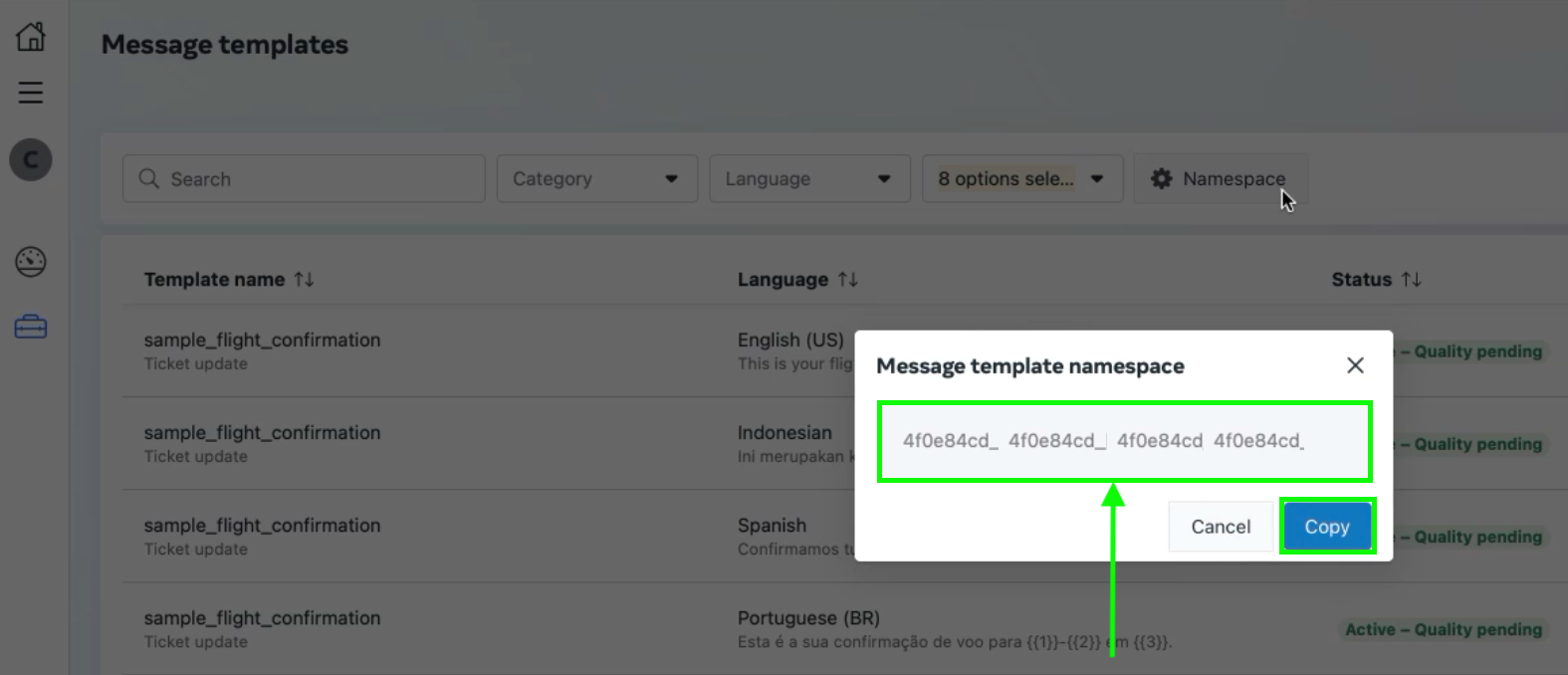
Once you have configured Sunshine Conversations Campaigns Lite you will see a list of the approved WhatsApp templates:

When selecting a WhatsApp template, all the elements of the template are shown. The elements can be header, body, parameters, footer and buttons.
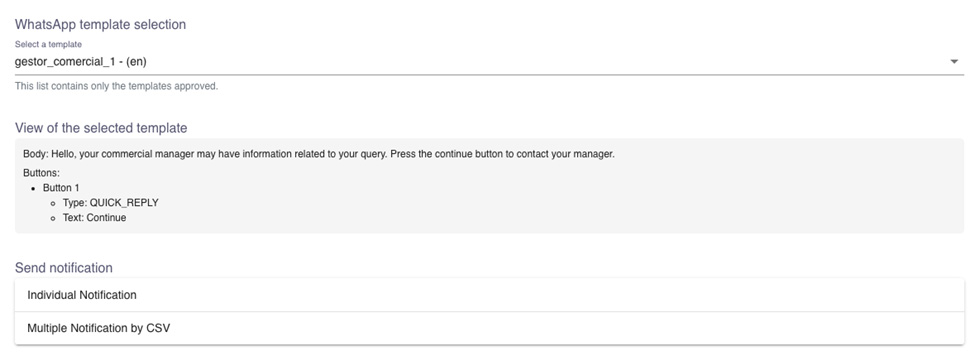
The options to send this WhatsApp notification can be individual or multiple.
If you choose individual notification, you will have to set the destination phone number and the variables to be set in each parameter of the template:
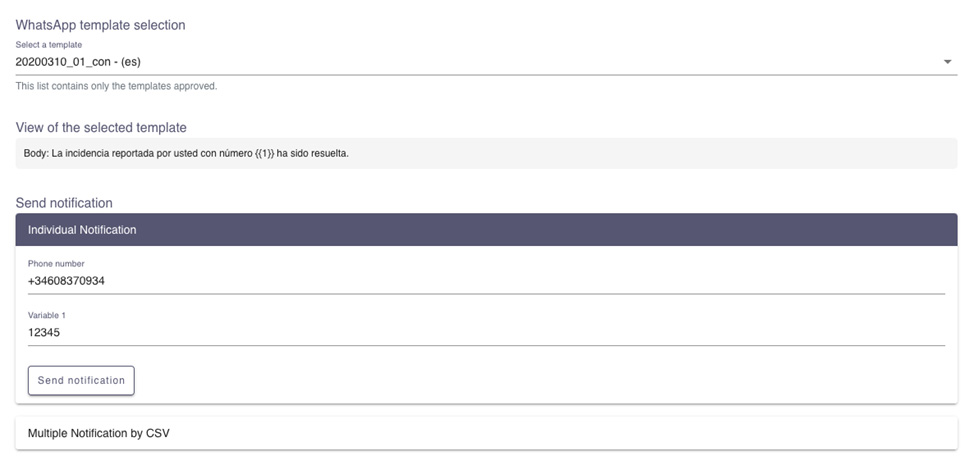
On the other hand, if you choose multiple notification by CSV, you will have to upload a CSV file containing the destination phone numbers and the variables of the parameters if the template is configured with parameters.
In the example, we have a template with one parameter, so the CSV file should have the following structure:
– First row: the name of the columns (Phone, Param1, Param2, ParamN).
– Following rows: the content of each column.
NOTE: This file can be made using spreadsheet software or by doing a simple text file, but saved as a .CSV file and the values inside, separated by commas.
Phone, Param1
+34608370934, 1234
+34608370935, 1235
+34608370936, 1236Should you need further assistance, please, contact help@centribal.com